
Browse and organize
Navigate buckets and local folders, work in tabs and split panes, and manage objects safely.
The browser uses the same workspace for object-storage buckets and folders on this machine. An account connection begins with every bucket its credential can list. A bucket connection can start at its root or at the prefix chosen when the connection was created.
Connections and favorites
Choose a connection in the sidebar to show it in the focused pane. A connection can also be opened in a new tab from its context menu.
At the root of an account connection, open a bucket to browse it. Each row shows the bucket’s region and creation date. Inside it, paths work like they do in a connection made for that bucket alone.
Use the star in the location bar, or Add to Favorites on a folder, to keep a frequently used prefix in the sidebar. A favorite remembers both its connection and its path. Opening it returns to that location without changing the connection’s configured root.
Navigate and select
Double-click a folder to enter it. The location bar’s breadcrumbs return to any
parent, and the .. row, Backspace, ← or
Mod+↑ goes up one level. Mod means Cmd on
macOS and Ctrl on Windows and Linux.
Click a column heading to sort by name, size or modification time. The filter box narrows rows that have already loaded in the current folder; it does not walk into subfolders.
The Search action is the recursive option. It searches below the location
currently open in the focused pane and can match text or a */? pattern,
extensions and a size range. Object storage has no general search operation, so
this works by listing keys. Starting in the narrowest useful prefix makes it
faster and reduces provider requests.
Tabs and split panes
Each tab remembers a connection and location. Use the plus button or Mod+T for another tab, and drag tabs to reorder them.
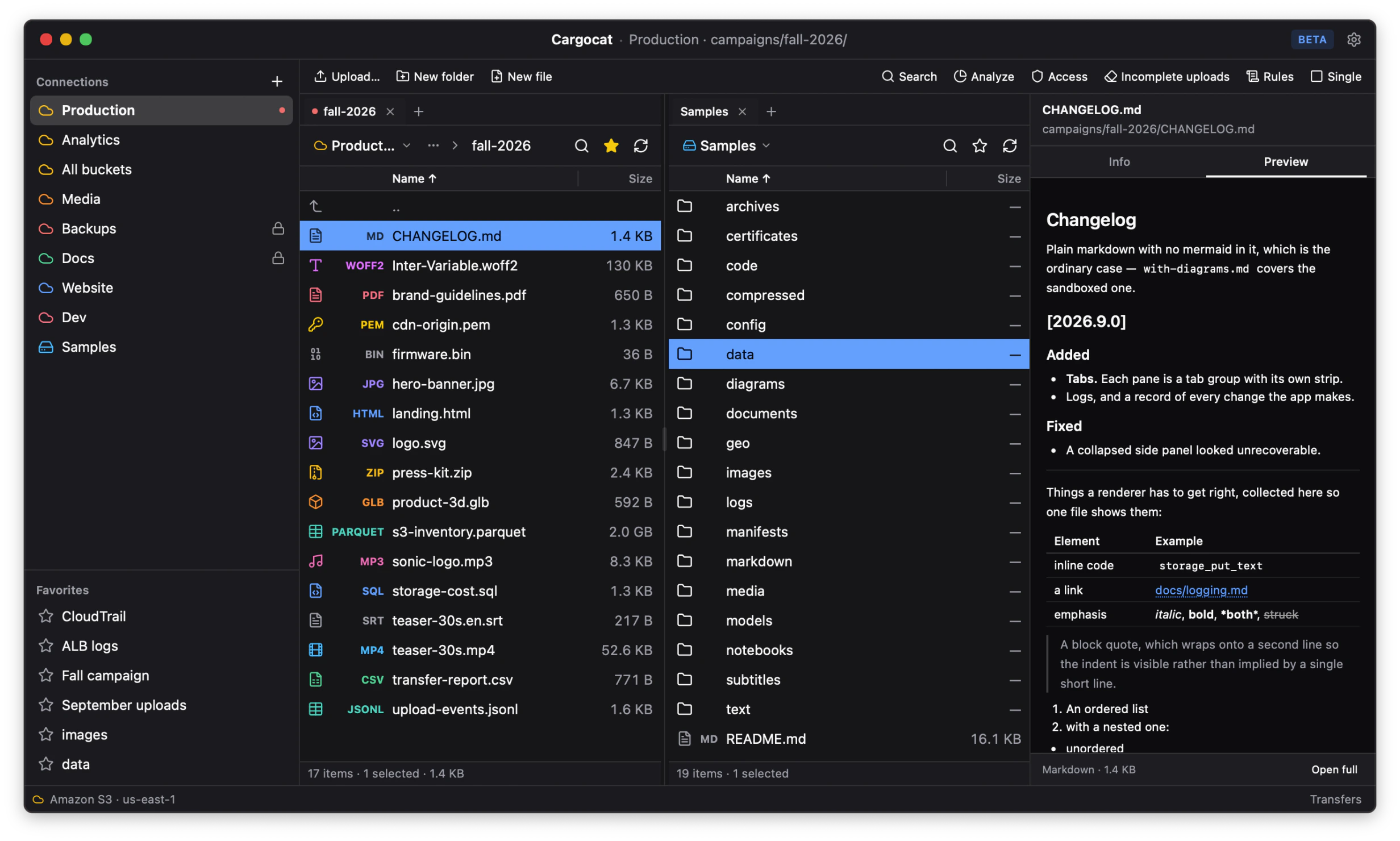
Choose Split to place two independently tabbed panes side by side. This is useful when the source and destination both need to stay visible: two prefixes in one bucket, two providers, or a local folder and a bucket. Dragging a tab to the other pane moves the tab; dragging an object copies or moves the object as described below.
Create and change objects
The toolbar creates a folder or a new text object in the focused location. A new text object opens directly in the editor.
At the root of an account connection, the same New folder action becomes New bucket. A bucket row’s menu opens its lifecycle, CORS, public-access and incomplete-upload tools, and can delete the bucket after confirming it is empty.
The object context menu provides copy, cut, rename and delete. In object storage, a rename or move is a copy to the new key followed by deletion of the old key. A folder is a prefix rather than one object, so moving or copying it walks every object below it and may take time.
Deleting cannot be undone unless bucket versioning makes an older version recoverable. A Production connection asks you to type its name before deletion; a Read-only connection refuses the operation entirely.
Drag, copy and paste
- Drag an object onto a folder in the same connection to move it.
- Drag between different connections to copy it. The source remains in place.
- Open a local folder and a bucket in the split view, then drag between them to upload or download.
- Use Mod+C, Mod+X and Mod+V for the same copy and move workflows.
- Drag files or folders from Finder or Explorer into a bucket pane to upload them. Dropping onto a folder row puts them in that folder; an imported folder keeps its structure.
Within a connection, a provider that supports server-side copy can move the bytes without sending them through the app. The same is true between two connections to one storage service when the destination credential can read the source; otherwise the copy streams through this machine. See Move data.
Share an object
Copy share link creates a pre-signed URL for a file. Anyone holding that URL can download the object until it expires, so treat it like a password. The expiry can be as short as 15 minutes and no longer than seven days.
A pre-signed link cannot be withdrawn on its own. Ending it early means deleting the object or rotating the access key, either of which affects more than that one link. Temporary credentials can also expire before the duration selected in the app.
The app keeps a local record of unexpired links it created, without storing the URLs themselves. Clearing that record only forgets the list; it does not disable the links.
Next
Preview objects to see what is in them without downloading the whole file.