
Move data
Upload, download and copy objects with resumable transfers, verification and bandwidth controls.
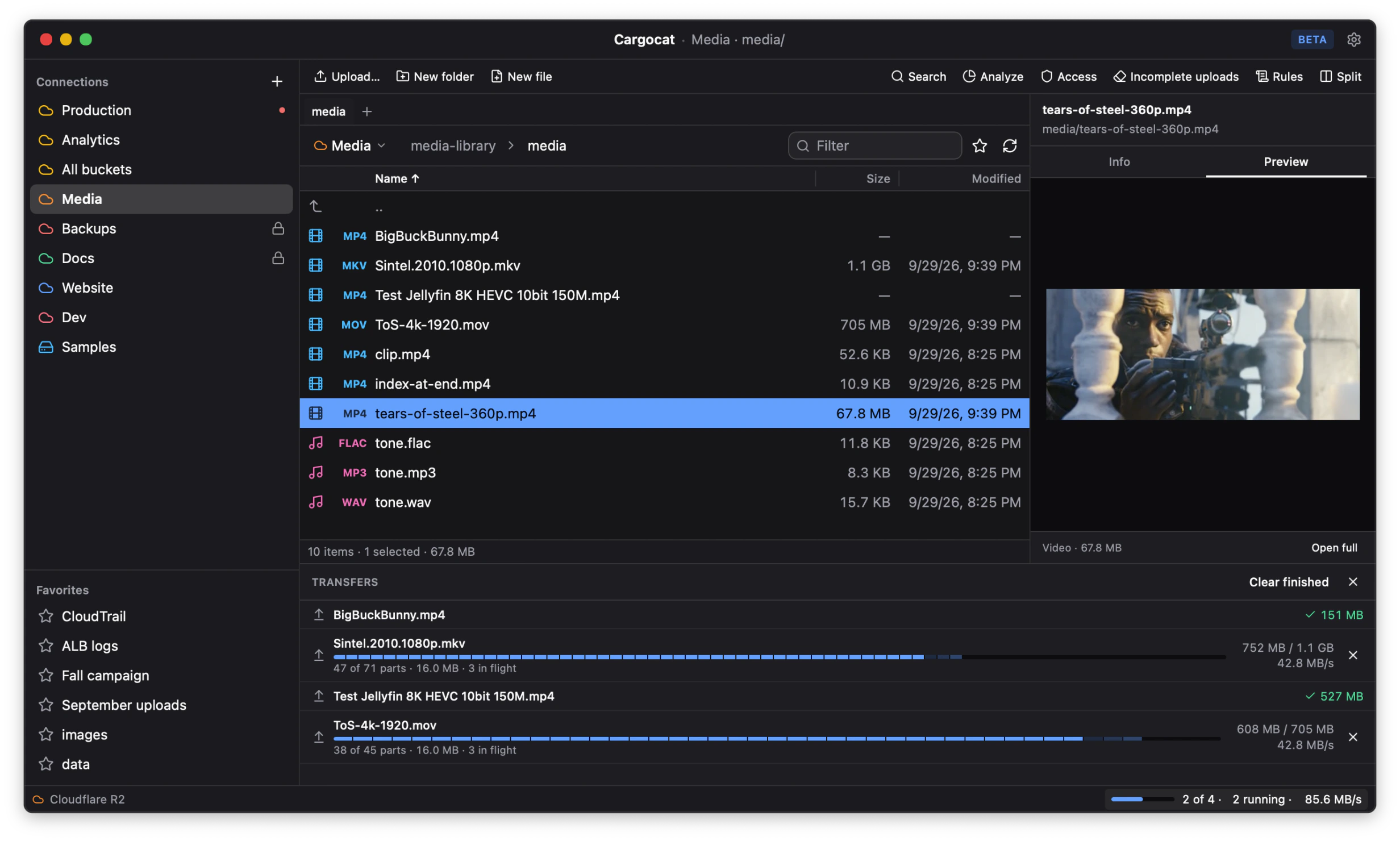
Transfers begin from the focused pane. Open the transfer panel from the status bar to see queued and running work, per-part progress, retries, speed and failures. A running transfer can be canceled; finished entries remain until you clear them.
Upload files
Choose Upload to pick files for the folder open in the focused bucket pane, or drag files or folders from Finder or Explorer into the pane. Dropping onto a folder row uploads there. An imported folder keeps its name and structure; linked folders are skipped rather than followed.
For repeated work, add a local-folder connection and open it beside the bucket in the split view. Dragging from the local pane to the bucket queues an upload.
Download files
Choose Download from an object’s context menu to select a destination on disk. With a local-folder connection open in the other pane, drag an object from the bucket into that pane instead.
Copy and move
Dragging within one connection moves the object into the destination folder. Dragging between connections copies it and leaves the source in place. Copy, cut and paste provide the same workflows from the keyboard or context menu.
Within one connection, the app uses server-side copy when the provider supports it, so the bytes never travel to this machine and back. It can do the same between two connections to one storage service when the destination credential can read the source. If it cannot, or the connections point at different services, the copy streams through this machine instead. Those streamed copies keep several parts in flight so downloading and uploading overlap.
A folder in object storage is a prefix, not one transferable object. Copying a folder first walks every object below it and then queues them individually. If the walk cannot reach the end, the app refuses to queue a partial copy that could look complete.
Resume and retry
Large transfers go out in parts. If the network drops, the app stops, or you close the lid, the transfer resumes from the last completed part rather than from the beginning.
Failed parts are retried on their own. One bad part does not restart a twelve-gigabyte upload. The transfer panel reports how many bytes were resumed so they are not mistaken for bytes sent in the current run.
Verification
After a transfer, the app checks that what arrived is what was sent. A mismatch is reported rather than logged quietly.
Bandwidth and concurrency
Under Settings → Transfers, set a bandwidth ceiling for all transfers, choose how many transfers run at once, how many parts each transfer sends in parallel, and the part size. The settings show their maximum memory cost.
A bandwidth ceiling is useful when the upload is large and you also need the connection for a video call. Higher concurrency can improve throughput to a distant region, but also increases memory use and the number of simultaneous provider requests.
Incomplete multipart uploads
When a multipart upload fails and is never aborted, the parts already sent stay on the provider. They are billed as stored data and do not appear in a listing — which is why buckets sometimes cost more than their contents suggest, and why nobody notices for months.
Choose Incomplete uploads to find them and abort the ones you no longer need. It is worth checking any bucket that has been in use for a while.
The activity trail
Every mutation — an upload, a delete, a lifecycle change — is recorded locally, with what was affected and when. It is for your own reference: what did I actually change on Tuesday. It stays on your machine and is never uploaded. See Credentials and privacy.
Next
Administer a bucket without opening the provider’s console.